Enable Matching Features in Fusion HCM
Create the Profile Option for Intelligent Matching
Create the Profile Option
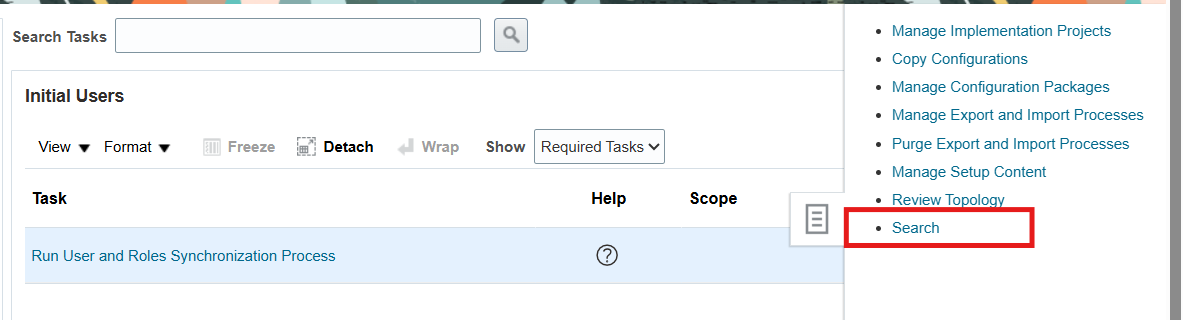
- In the Setup and Maintenance work area, click the Tasks icon → Search
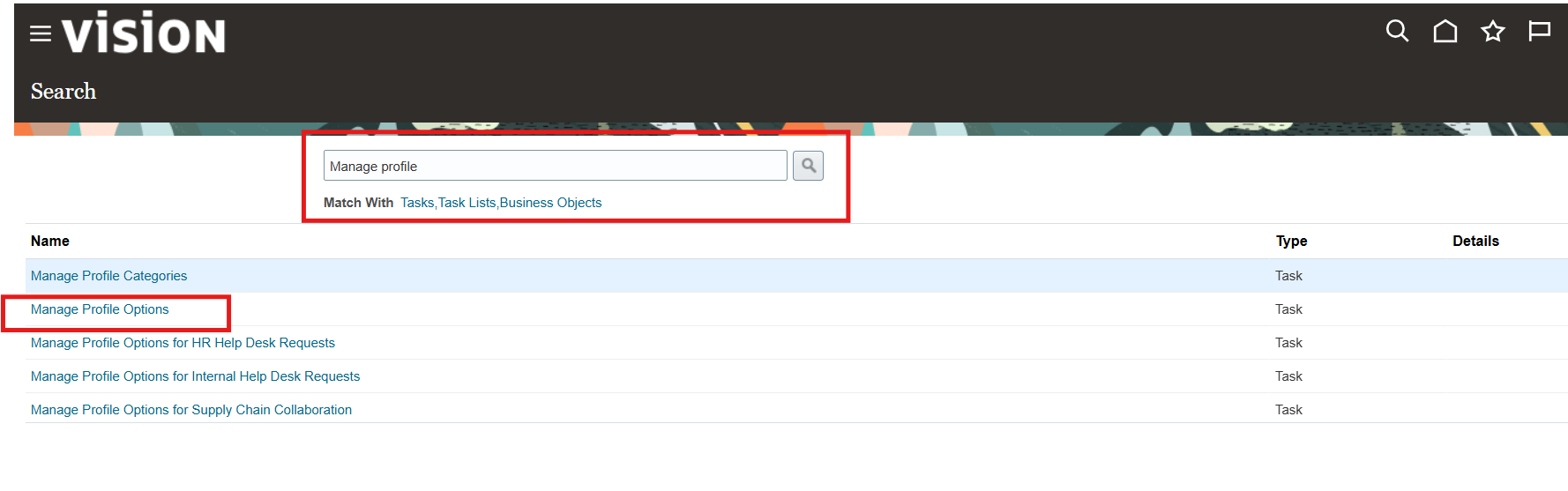
- Search for and open the task Manage Profile Options
- On the Manage Profile Options page, click the New icon
- On the Create Profile Option page, enter:
- Profile Option Code: IRC_AI_INTELLIGENT_MATCHING
- Profile Display Name: Intelligent Matching Features Enabled
- Application: Recruiting
- Module: Recruiting Common
- Description: Enable or disable AI features in the Setup and Maintenance work area.
- Start Date: today’s date
- Click Save and Close
Enable It at the Site Level
Once created, the profile option has no value set — you need to enable it:
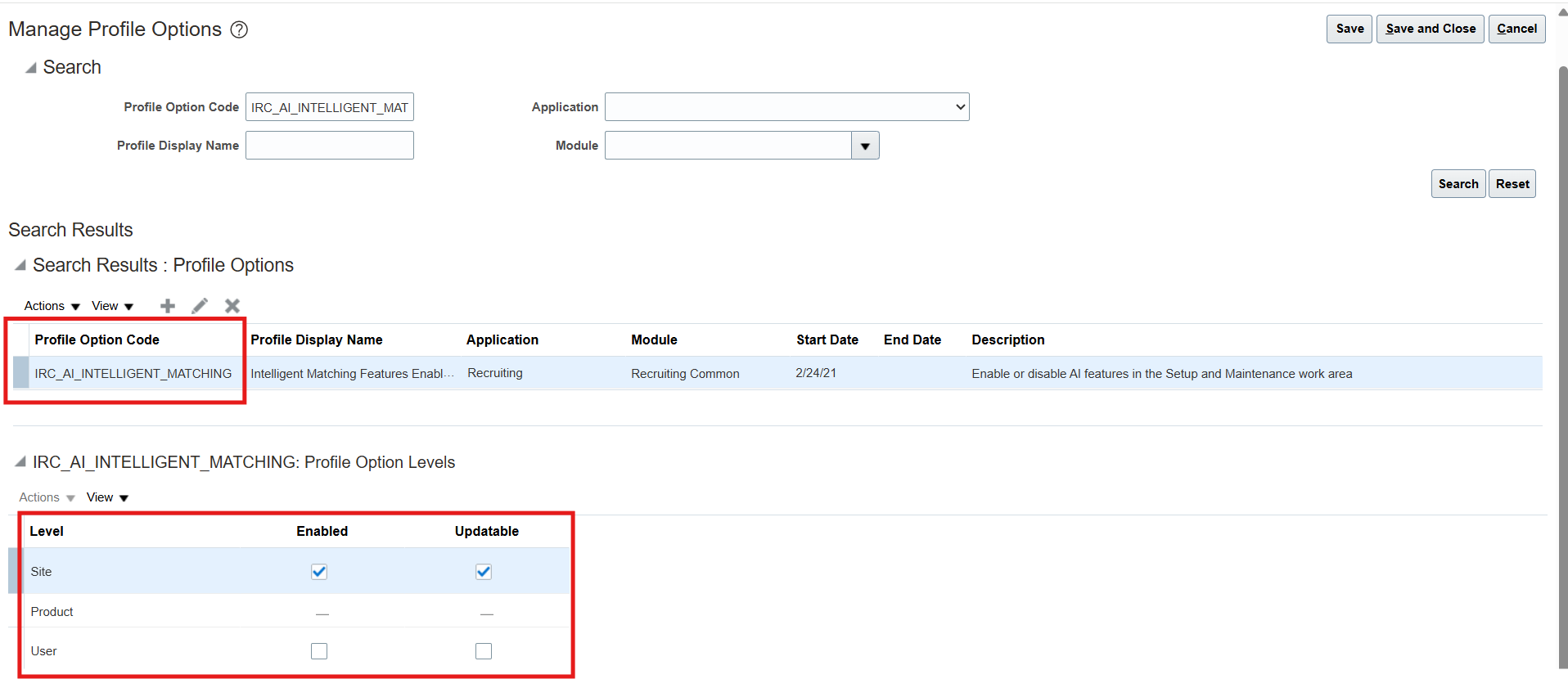
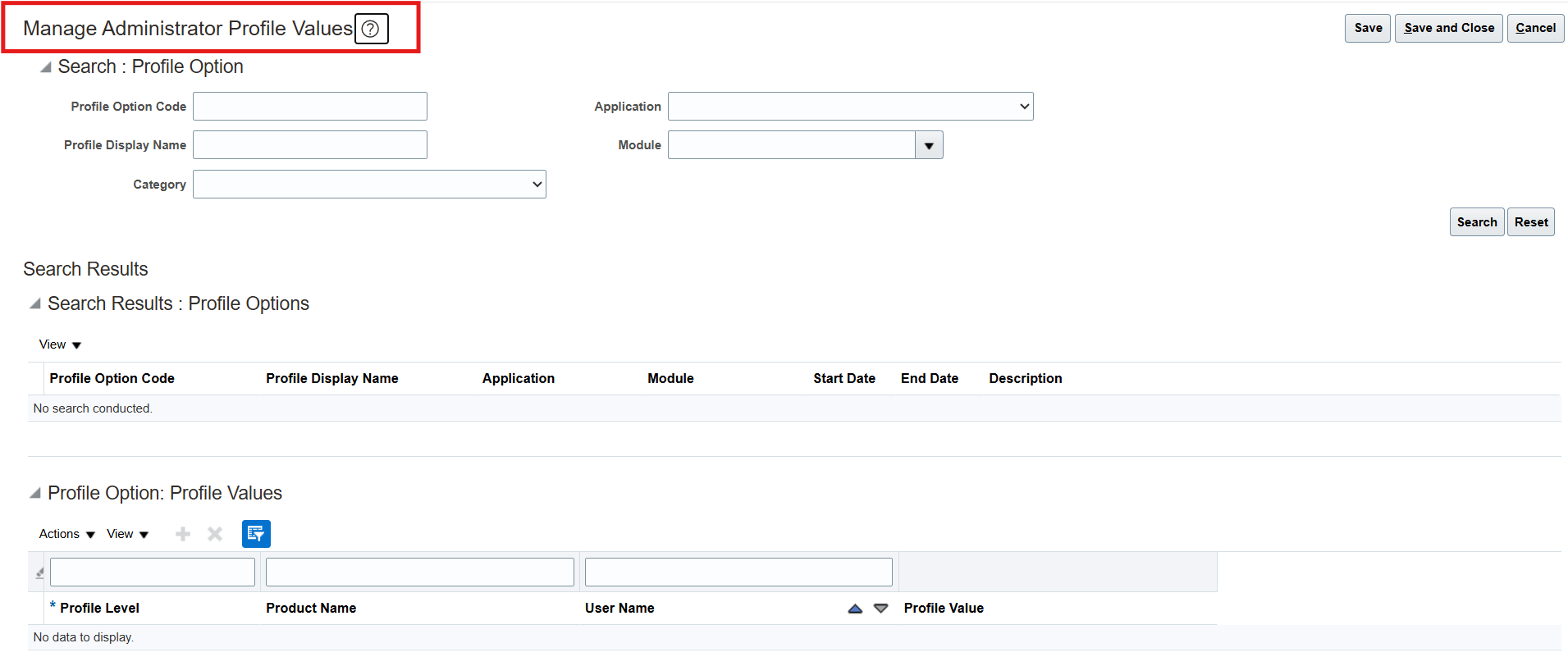
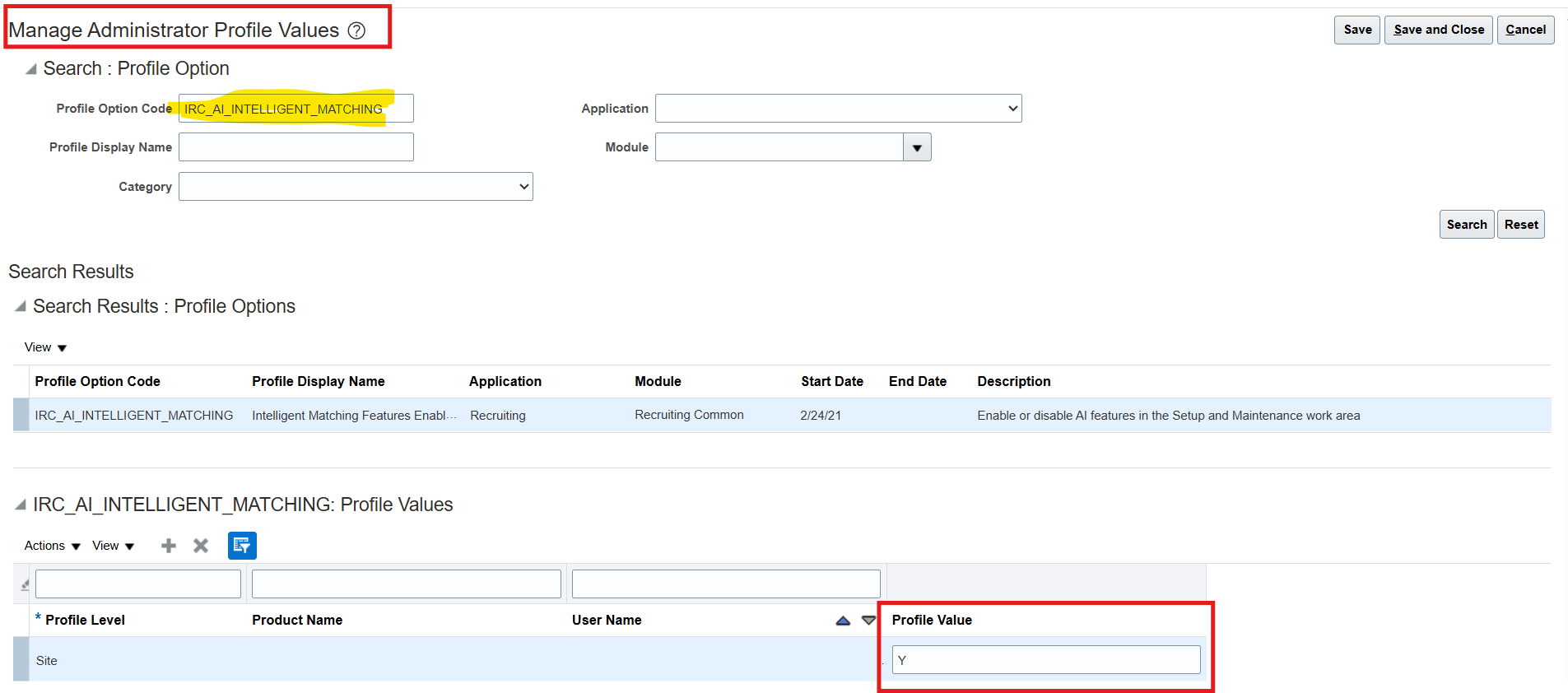
- Back in Setup and Maintenance, search for the task Manage Administrator Profile Values
- Search for the profile option code IRC_AI_INTELLIGENT_MATCHING
- Set the profile value at the Site level to Y
- Click Save and Close
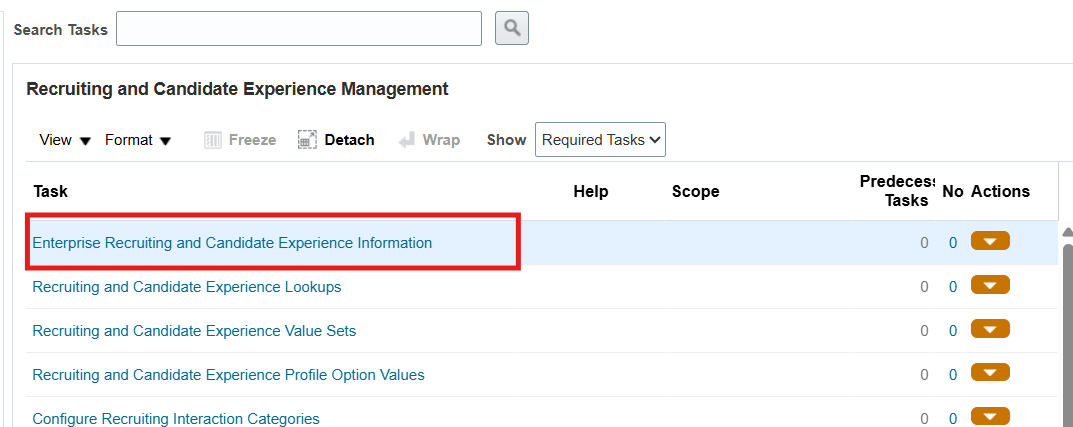
- Enable Intelligent Matching Features — under Offering: Recruiting and Candidate Experience → Functional Area: Recruiting and Candidate Experience Management → Task: Enterprise Recruiting and Candidate Experience Information → expand AI Feature Integration → select which features to turn on (Suggested Candidates, Similar Jobs, Suggested Jobs, Similar Candidates)
- Run the scheduled process Synchronize Recruiting Data for Candidate Recommendations to push data to Oracle AI Apps

Enable Intelligent Matching Features
- In the Setup and Maintenance work area, go to the Recruiting and Candidate Experience offering
- Navigate to the Recruiting and Candidate Experience Management functional area
- Open the task Enterprise Recruiting and Candidate Experience Information
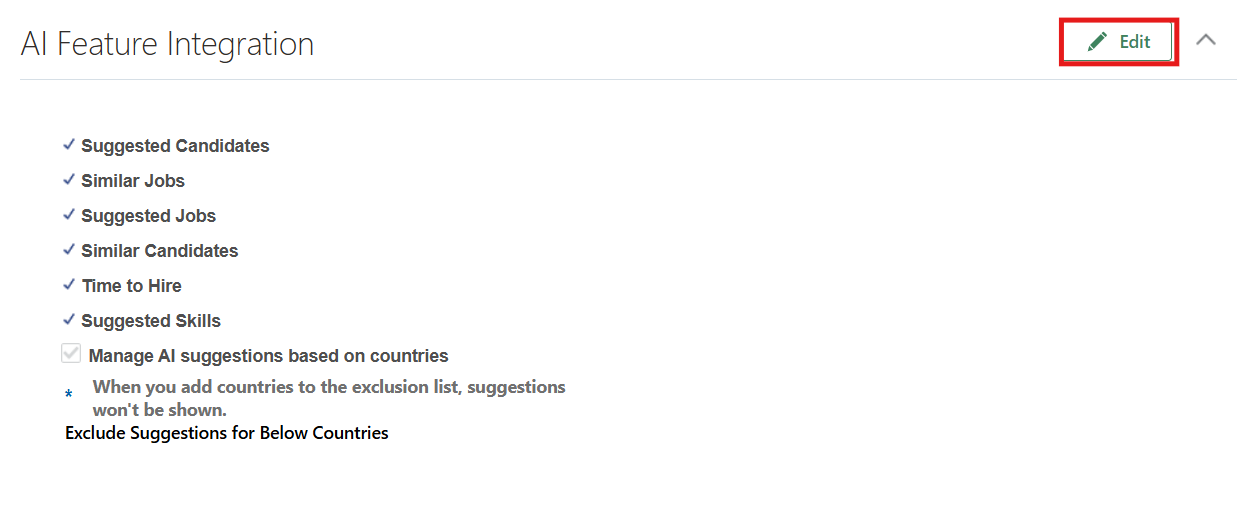
- Expand the AI Feature Integration section and click Edit
- Select the matching feature(s) you want to enable:
- Suggested Candidates — recruiters see suggested candidates for an open job requisition
- Similar Candidates — recruiters find candidates with similar traits to an existing candidate
- Similar Jobs — suggests similar jobs based on a specific job requisition
- Suggested Jobs — candidates see jobs suggested based on their own profile
- Click Save

Run the scheduled Process for Candidate Recommendations
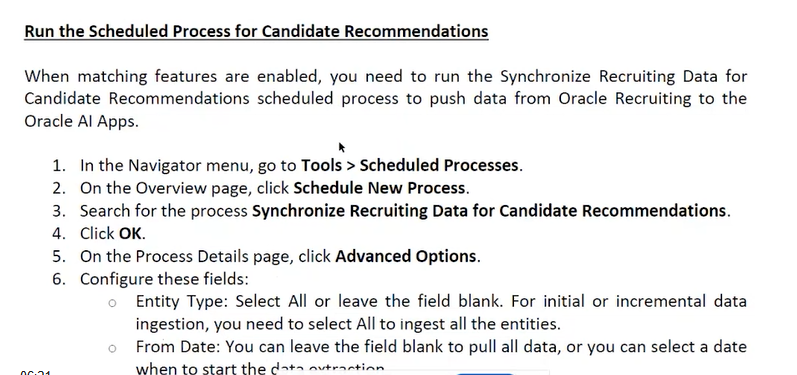
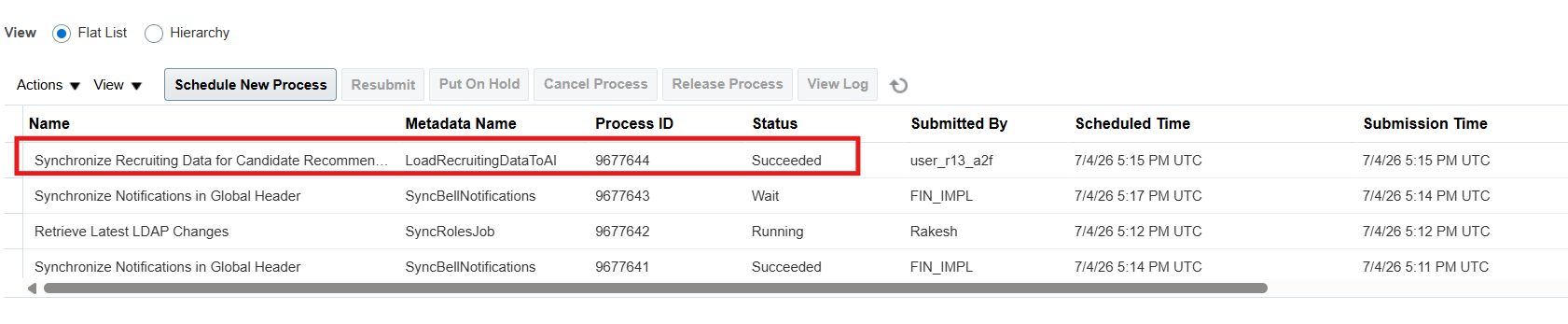
When matching features are enabled, you need to run the Synchronize Recruiting Data for Candidate Recommendations scheduled process to push data from Oracle Recruiting to the Oracle AI Apps.
Run the Data Sync
Once the features are enabled, you need to push the data over so the matching engine has something to work with:
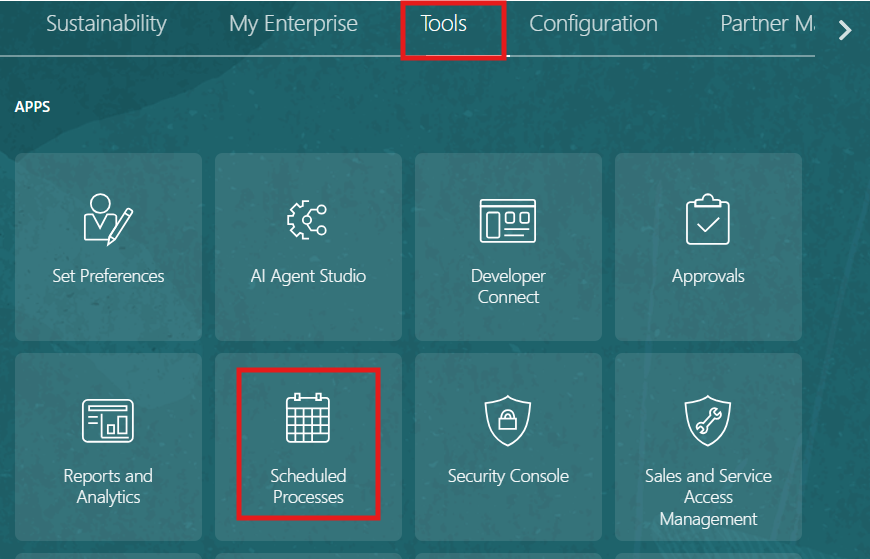
- Go to Navigator → Tools → Scheduled Processes
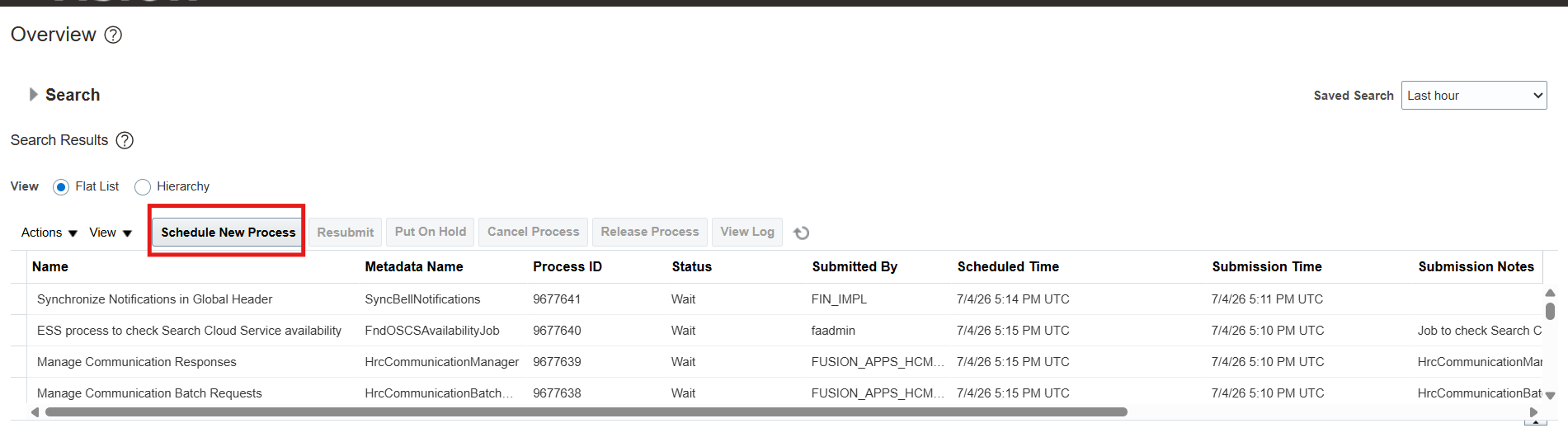
- On the Overview page, click Schedule New Process
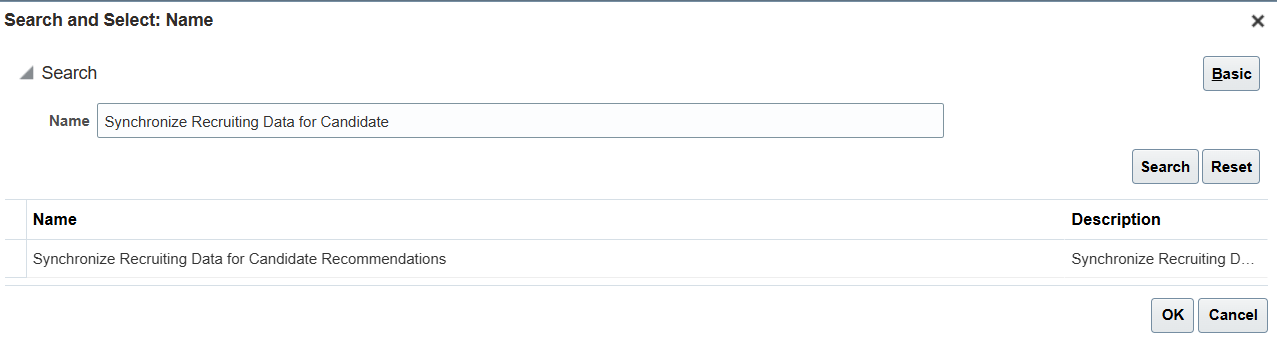
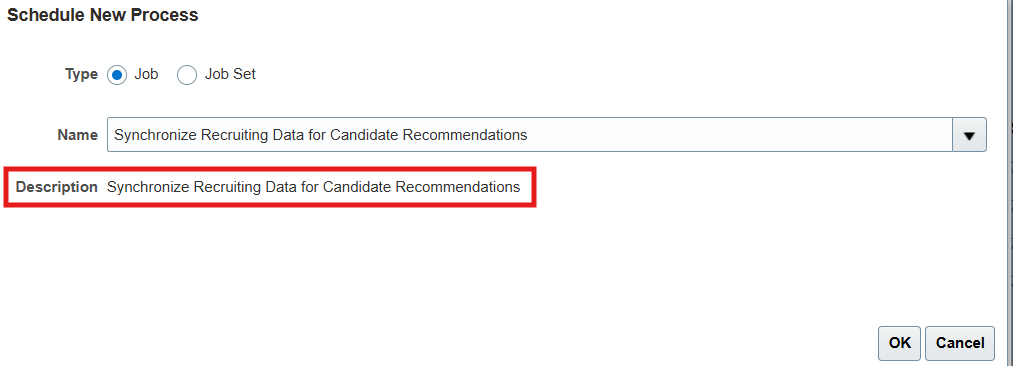
- Search for and select Synchronize Recruiting Data for Candidate Recommendations
- On the Process Details page, click Advanced Options
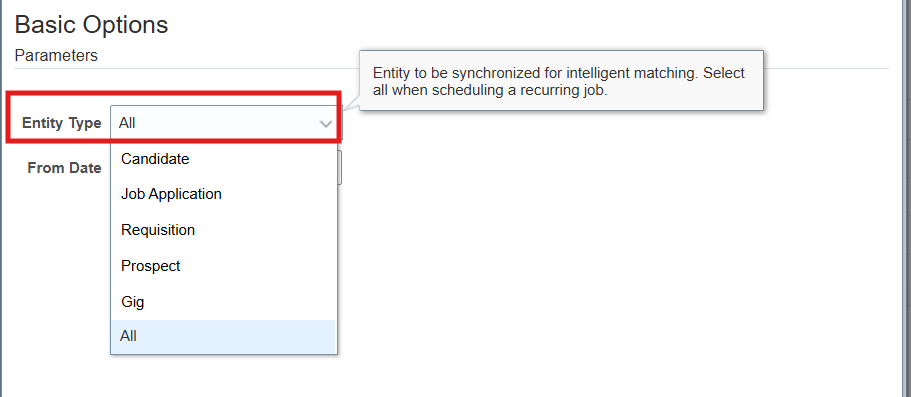
- Set Entity Type to All (or leave blank)
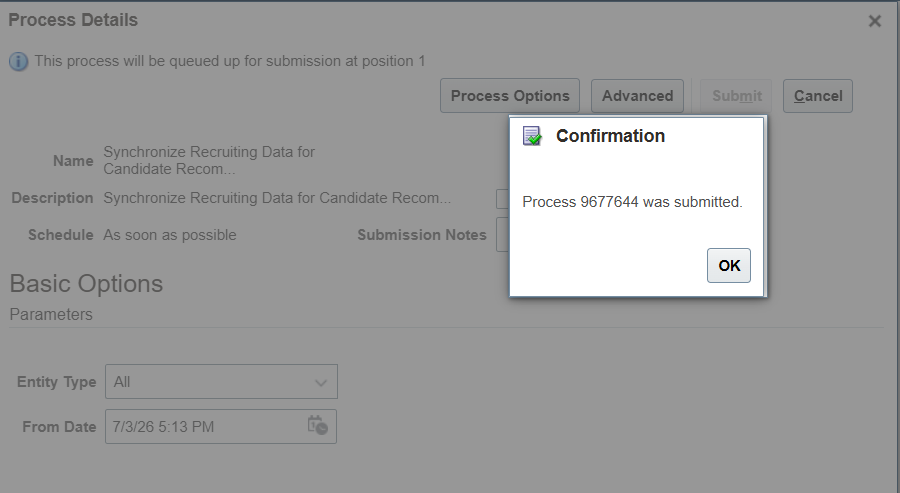
- Submit the process
A couple of things to validate
- Suggested Candidates, Similar Candidates, Similar Jobs, and Recommended Jobs are automatically activated once you run the sync — they don’t need separate Oracle AI Apps activation steps beyond what you’ve already done.
- Your Recruiting environment must not be on a government pod to use these features, and Oracle recommends it be live in production for at least 6 months (or have prior production data) for the AI matching to produce quality results.